Introduction
Many parents face challenges when trying to reach the right school department for inquiries or requests. Often, messages are sent to a single staff member, leading to delayed responses, lost messages, or no reply at all.
To solve this issue, Schoolvoice introduced the Chat Channels feature, a smarter way to streamline communication between parents and school departments. Messages are now sent to a dedicated channel where the entire team, not just one person, can view and respond. This improves response time, enhances oversight, and reduces pressure on individual staff.
These channels aren’t limited to administrative teams. Schools can also create channels for school-wide initiatives or special groups that include both teachers and staff, with flexible supervision depending on the initiative.
What Problem Does It Solve?
Messages used to reach only one person
If that person was unavailable, parents didn’t get a response
Limited visibility and oversight by school leadership
Delays in handling parent inquiries
Benefits of Chat Channels
For Schools
Each department has its own unified message channel
Any available team member can respond
School management or department heads can monitor all conversations
Faster response times and better organization
For Teachers
Fewer administrative messages go to individual teachers
Parents are directed to the appropriate department
Teachers can stay focused on teaching and classroom-related communication
For Parents
Faster responses without repeated follow-ups
Clear visibility of which department handles each request
Less frustration from misdirected communication
A more efficient and professional communication experience
All messages in one place — no confusion or scattered chats
How the Feature Works
For School Administrators
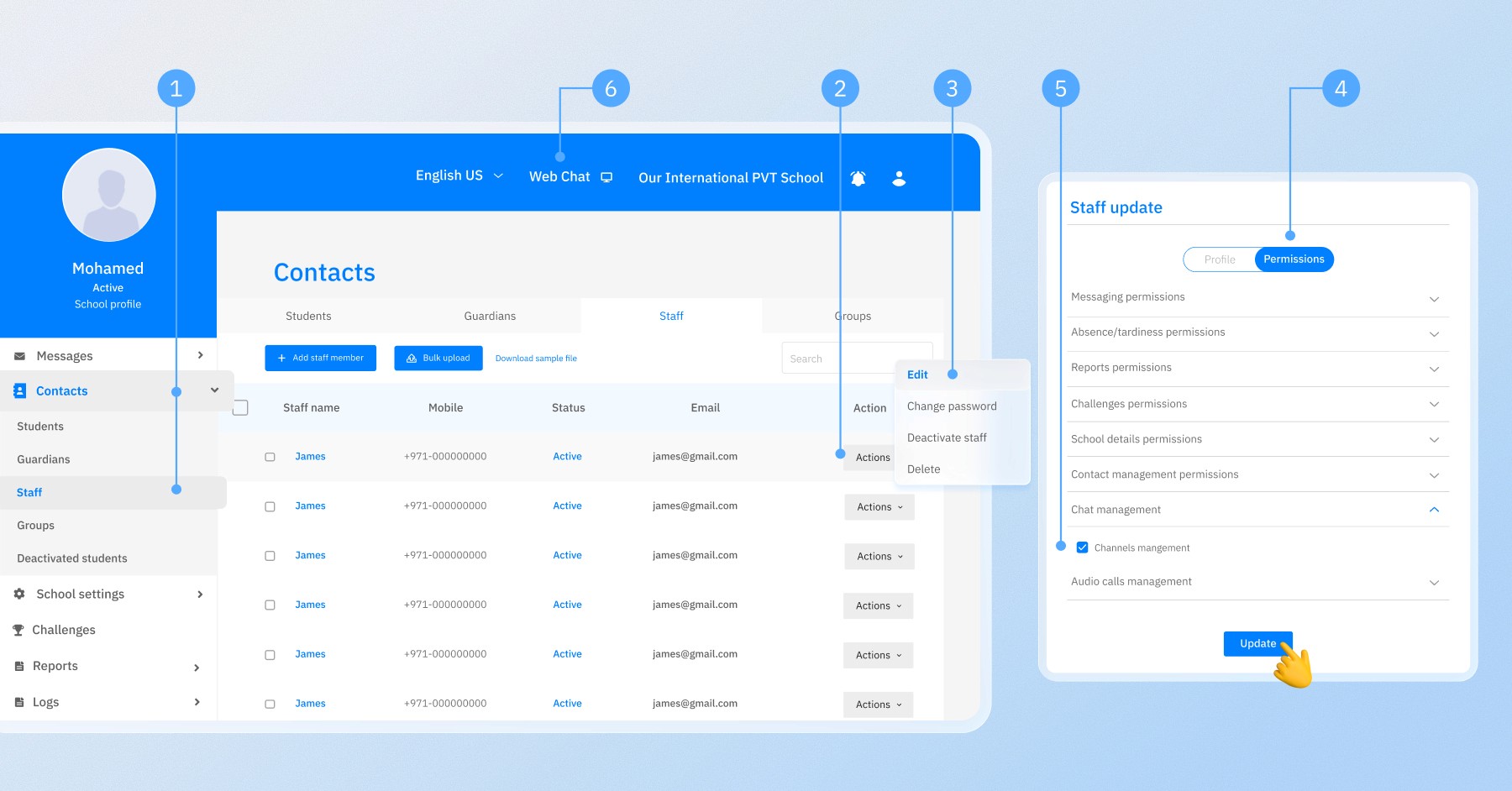
Log in to the admin dashboard: schoolvoice.com/admin
Go to “Contacts” and grant “Channel Management” permission to the designated admin
Head over to the “Web Chat” section
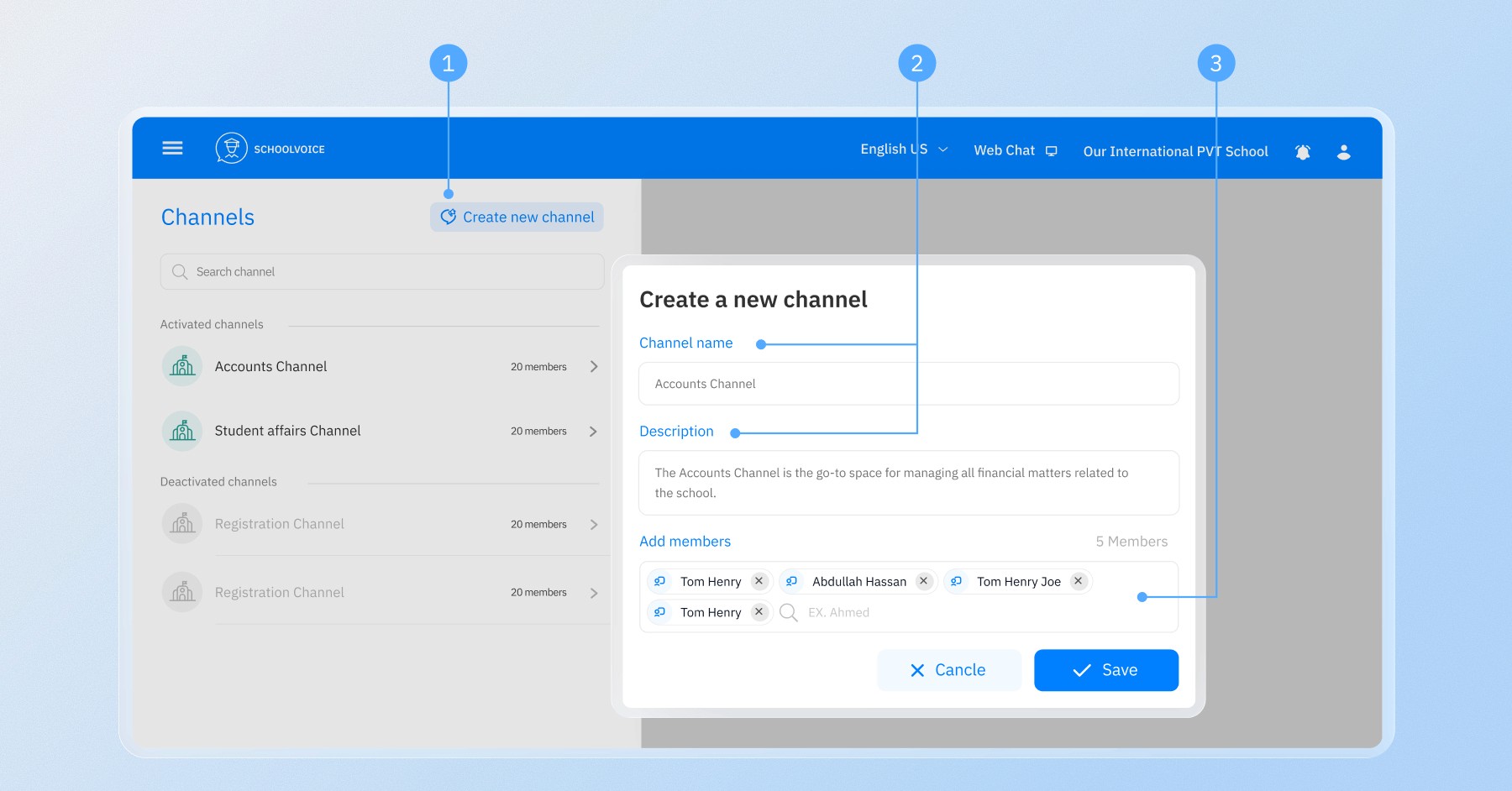
Create channels for each department or school initiative
Name each channel based on its purpose (e.g., department or initiative name)
Add the staff and teachers responsible for handling replies
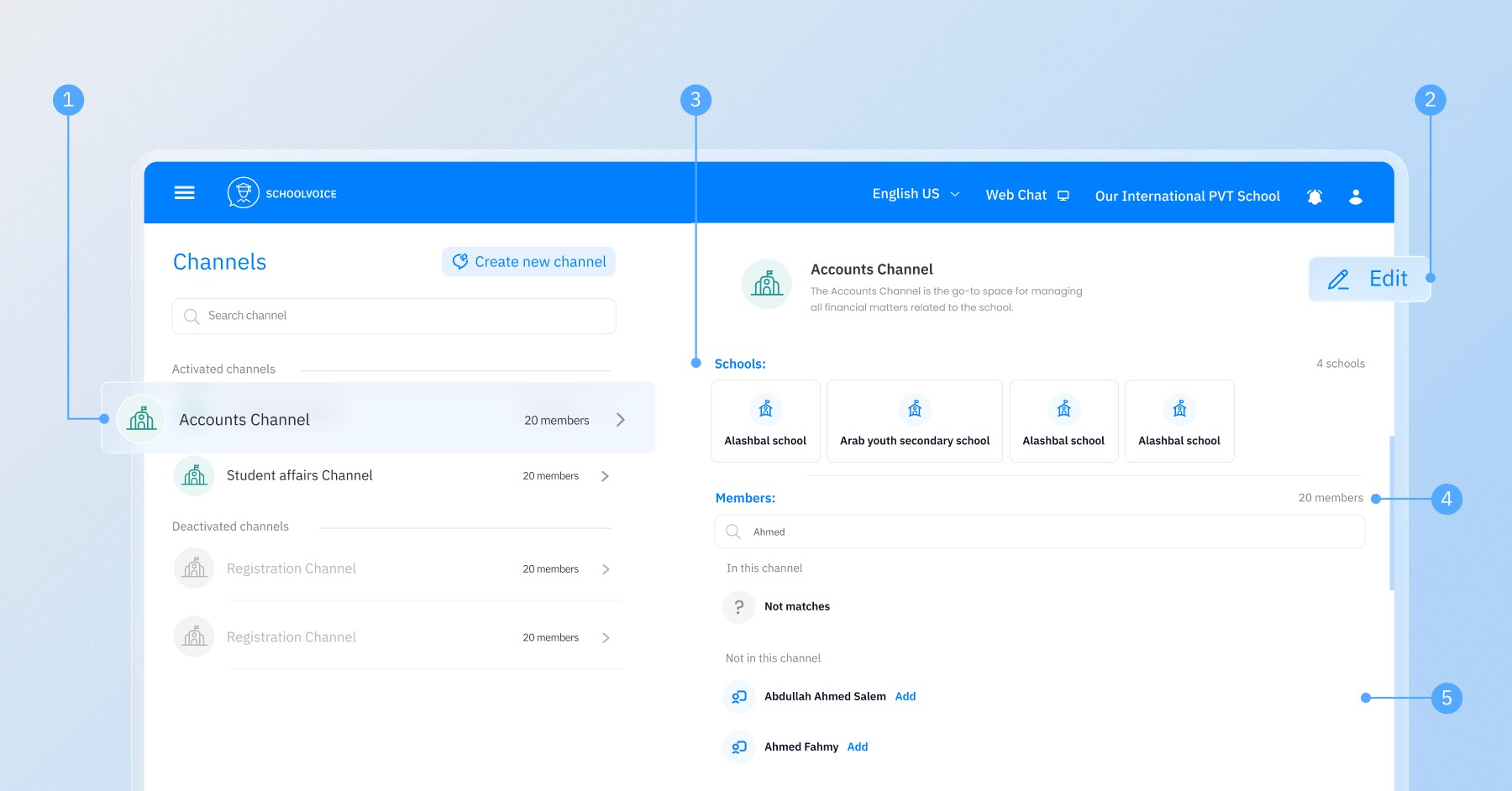
Monitor and manage communication from the main dashboard to ensure quality
Once the channel is created, it will appear like this. You can update its details or delete it anytime if needed.
For Department Staff
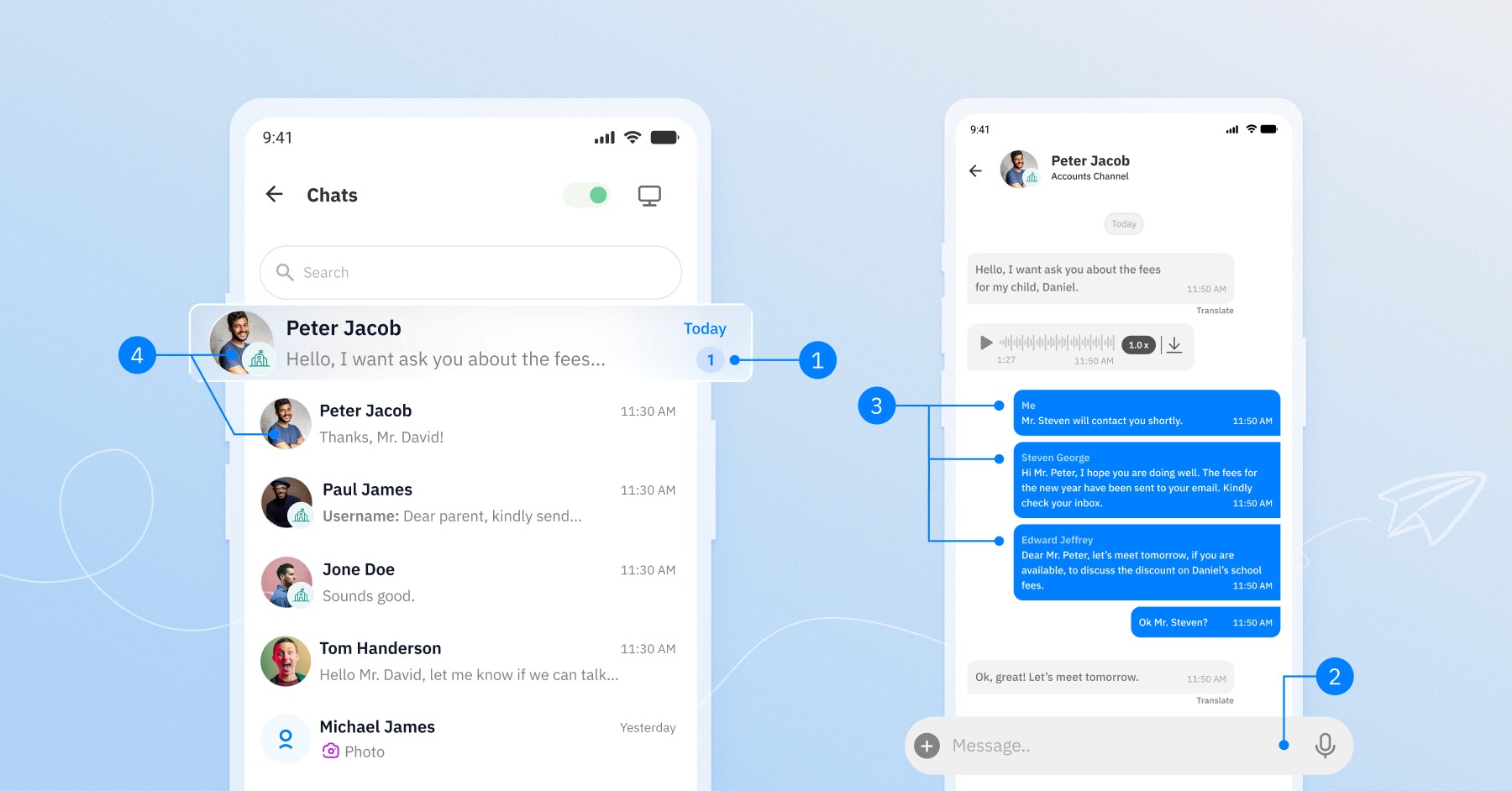
When a parent sends a message, it appears in the shared channel for all team members
Any available staff member can respond
Replies show the responder’s name, color-coded for clarity
All chats are visible to the department head
A small icon below the parent’s name indicates the message came through a department or initiative channel, showing its name
Quick responses are encouraged, or messages can be reassigned internally
Staff can refer back to previous conversations in the channel
For Parents
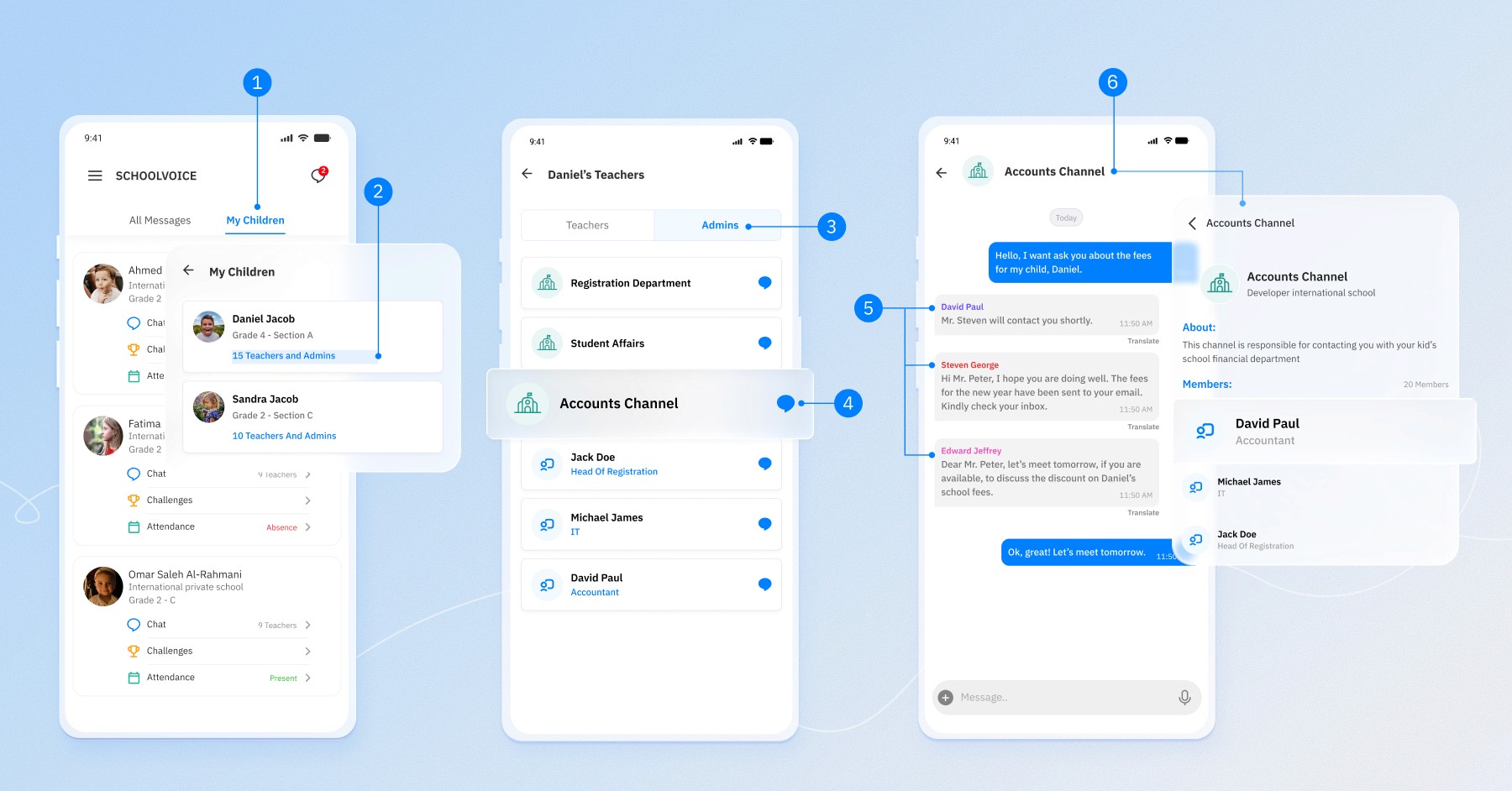
Tap on: “My Children” → “Teacher Chats” → “Admins”
Choose the appropriate department or initiative to start a chat
All replies appear in the same thread
Each team member’s name appears in a different color so parents can easily identify who responded
Clicking the department name shows a list of team members and their roles
Conclusion
The Chat Channels feature from Schoolvoice is a practical, organized solution to improve communication between parents and schools. It shortens response times, reduces workload on individuals, and gives schools better control over how interactions are handled.
To activate this feature for your school, contact the Schoolvoice support team today.
Frequently Asked Questions (FAQ)
How is this better than the old way of messaging?
Previously, messages were sent to a single staff member. If they were unavailable, parents often received no response. With Chat Channels, messages are directed to the entire team within a department or initiative, ensuring quicker replies and better oversight from school leadership.
Can we choose which departments or initiatives parents see?
Yes. Schools have full control over which channels appear in the app. They can assign specific staff or teachers to handle messages in each one.
Can parents tell who responded to their message?
Absolutely. In each channel, replies include the responder’s name in a unique color to help parents identify who’s replying.
What if no one responds to a parent’s message?
Since the message is visible to the entire channel team, it’s unlikely to go unanswered. If needed, a department head or supervisor can step in from the admin dashboard.
Can we create channels for internal school initiatives?
Yes. Channels can be created for any school program or activity involving staff and teachers, with flexible oversight from school leaders or initiative heads.
How can staff tell if a message is from a channel or an individual chat?
A small label below the parent’s name shows whether the message came through a channel, along with the channel name — making it easy to understand the context.