Introducing Chat Channels: A Smarter Way to Connect with Schools

Introduction
Many parents face challenges when trying to reach the right school department for inquiries or requests. Often, messages are sent to a single staff member, leading to delayed responses, lost messages, or no reply at all.
To solve this issue, Schoolvoice introduced the Chat Channels feature, a smarter way to streamline communication between parents and school departments. Messages are now sent to a dedicated channel where the entire team, not just one person, can view and respond. This improves response time, enhances oversight, and reduces pressure on individual staff.
These channels aren’t limited to administrative teams. Schools can also create channels for school-wide initiatives or special groups that include both teachers and staff, with flexible supervision depending on the initiative.
What Problem Does It Solve?
- Messages used to reach only one person
- If that person was unavailable, parents didn’t get a response
- Limited visibility and oversight by school leadership
- Delays in handling parent inquiries
Benefits of Chat Channels
For Schools
- Each department has its own unified message channel
- Any available team member can respond
- School management or department heads can monitor all conversations
- Faster response times and better organization
For Teachers
- Fewer administrative messages go to individual teachers
- Parents are directed to the appropriate department
- Teachers can stay focused on teaching and classroom-related communication
For Parents
- Faster responses without repeated follow-ups
- Clear visibility of which department handles each request
- Less frustration from misdirected communication
- A more efficient and professional communication experience
- All messages in one place — no confusion or scattered chats
How the Feature Works
For School Administrators
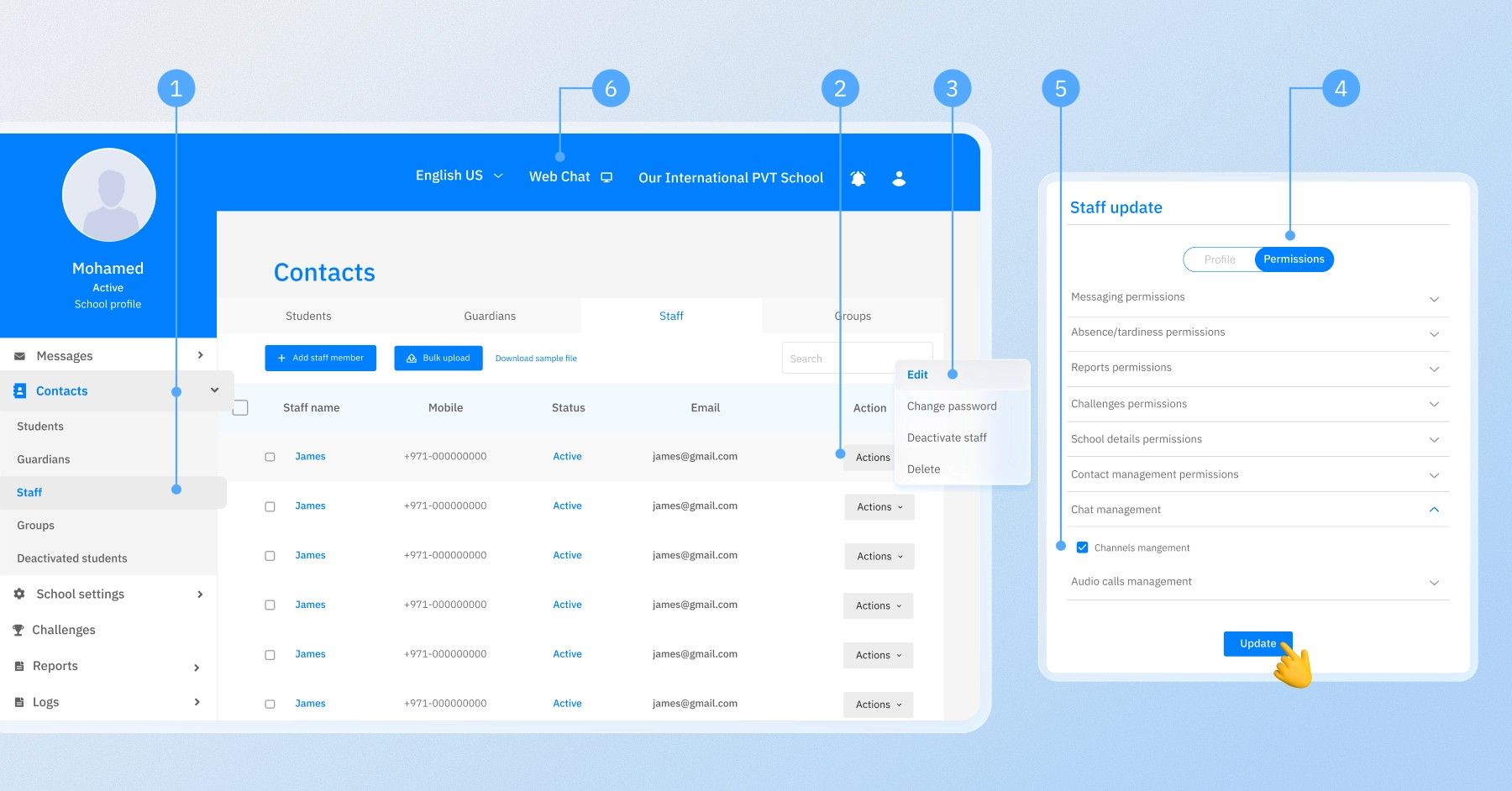
- Log in to the admin dashboard: schoolvoice.com/admin
- Go to “Contacts” and grant “Channel Management” permission to the designated admin
- Head over to the “Web Chat” section
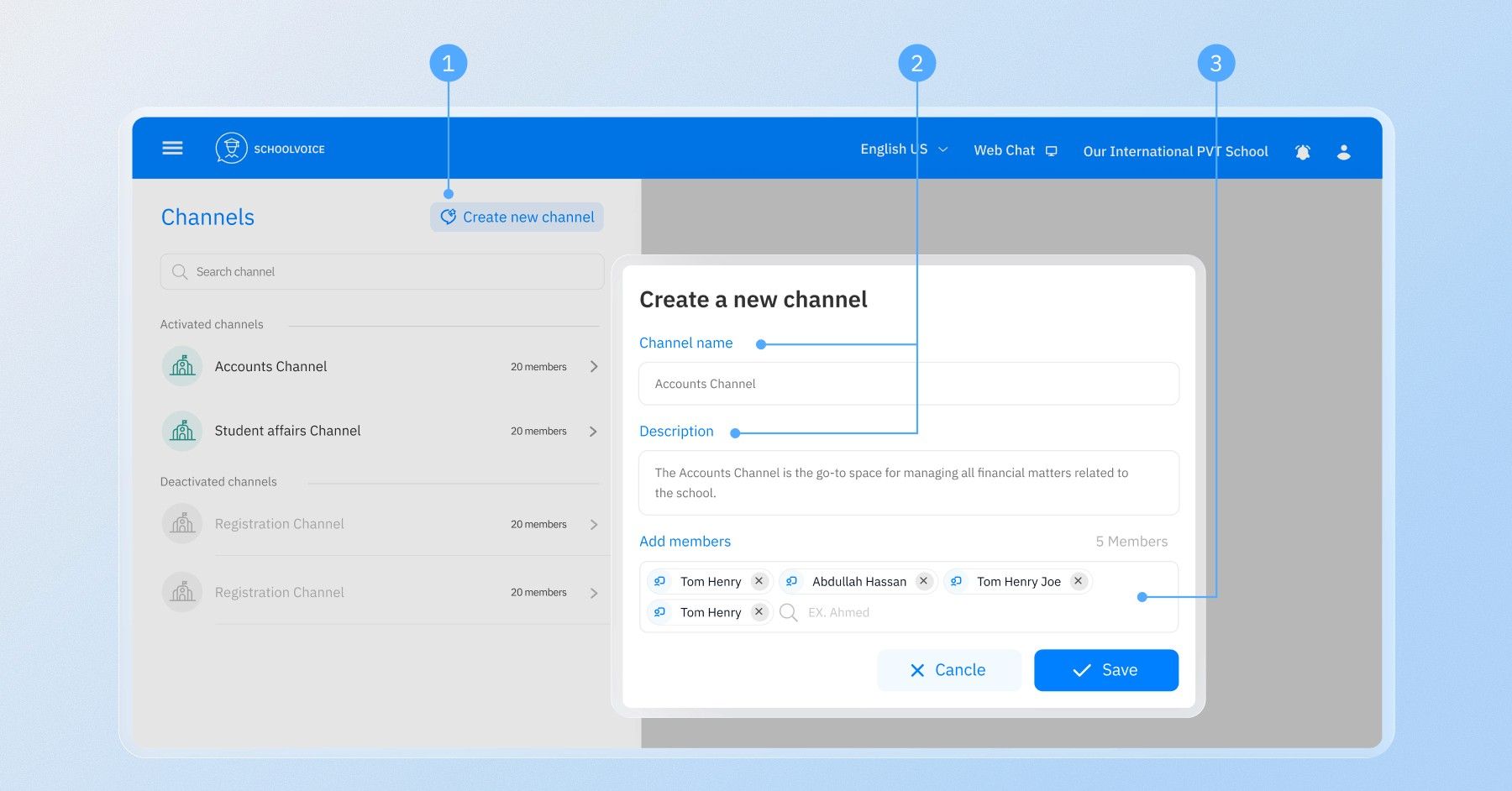
- Create channels for each department or school initiative
- Name each channel based on its purpose (e.g., department or initiative name)
- Add the staff and teachers responsible for handling replies
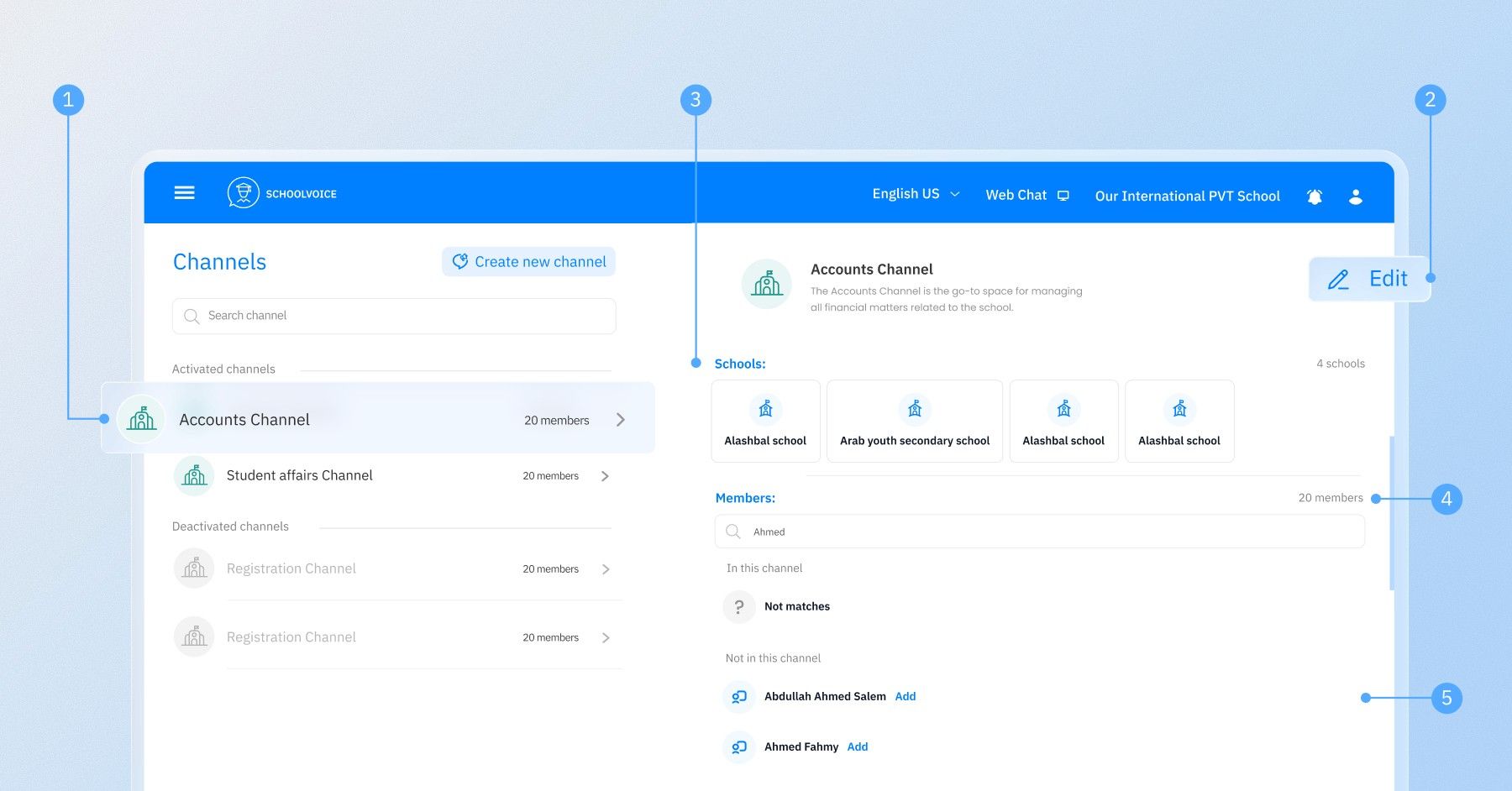
- Monitor and manage communication from the main dashboard to ensure quality
- Once the channel is created, it will appear like this. You can update its details or delete it anytime if needed.
For Department Staff
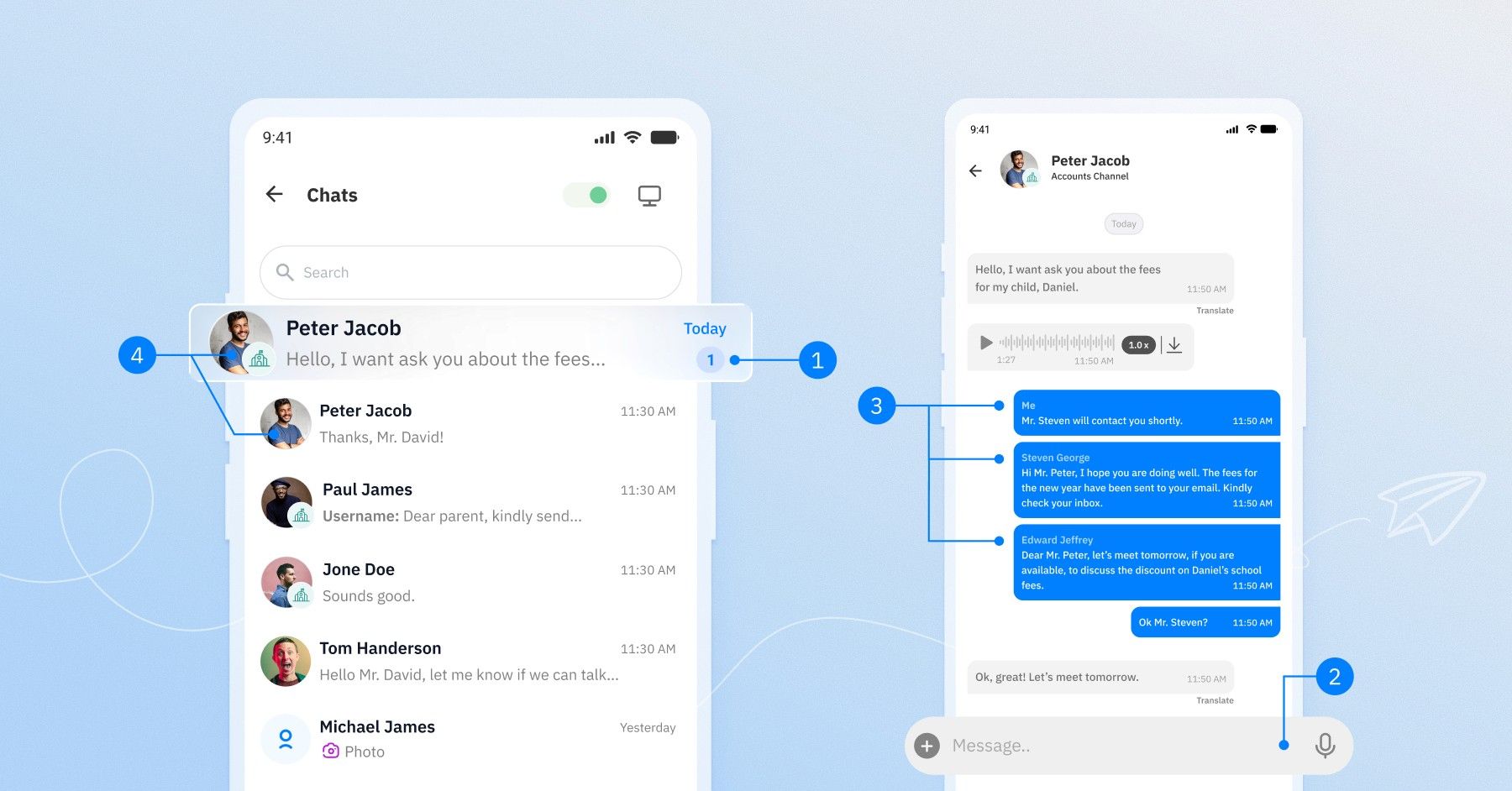
- When a parent sends a message, it appears in the shared channel for all team members
- Any available staff member can respond
- Replies show the responder’s name, color-coded for clarity
- All chats are visible to the department head
- A small icon below the parent’s name indicates the message came through a department or initiative channel, showing its name
- Quick responses are encouraged, or messages can be reassigned internally
- Staff can refer back to previous conversations in the channel
For Parents
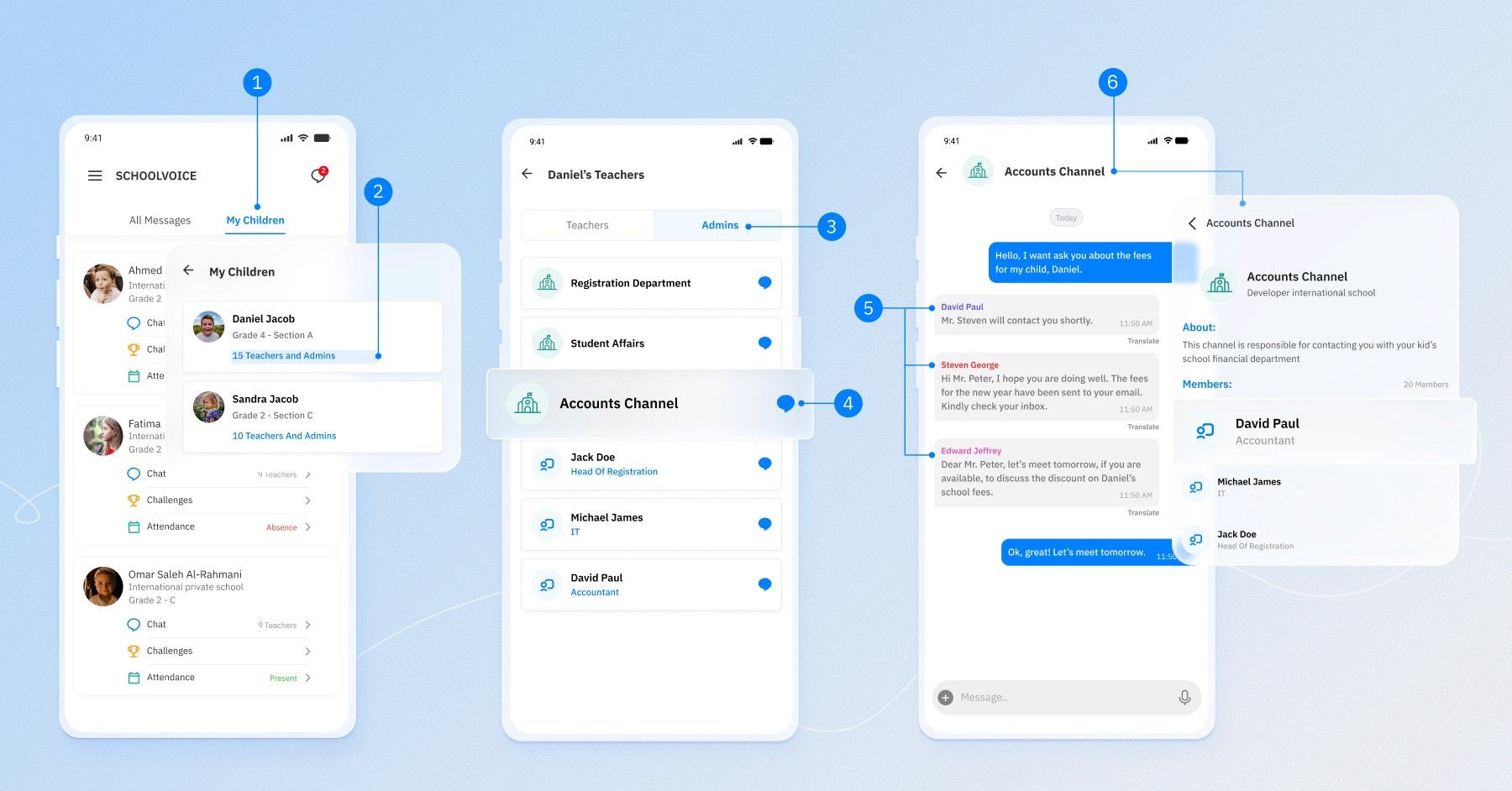
- Tap on: “My Children” → “Teacher Chats” → “Admins”
- Choose the appropriate department or initiative to start a chat
- All replies appear in the same thread
- Each team member’s name appears in a different color so parents can easily identify who responded
- Clicking the department name shows a list of team members and their roles
Conclusion
The Chat Channels feature from Schoolvoice is a practical, organized solution to improve communication between parents and schools. It shortens response times, reduces workload on individuals, and gives schools better control over how interactions are handled.
To activate this feature for your school, contact the Schoolvoice support team today.