Schoolvoice Voice Calls: Secure and Effective Communication Between Schools and Parents
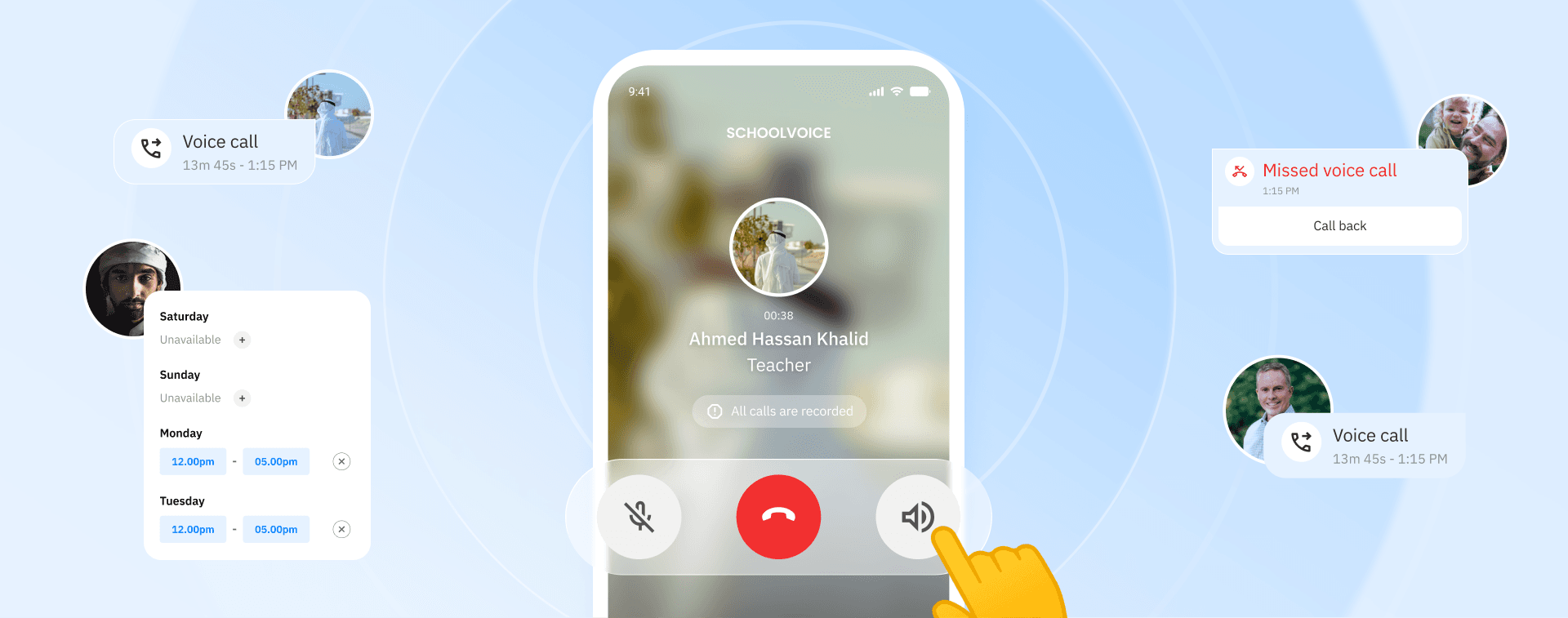
In a school environment where communication between teachers, administrators, and parents is essential, text messages are not always enough to discuss important matters or address urgent situations clearly and efficiently. To make communication easier and more effective, Schoolvoice has introduced voice calls as the latest addition to the platform.
The voice calls feature allows teachers, administrators, and parents to connect directly within Schoolvoice without sharing personal phone numbers. This helps protect privacy while giving schools greater visibility and control over communication. It also enables faster problem-solving, clearer discussions about student-related matters, and stronger collaboration between schools and parents.
What is the voice calls feature, and what solutions does it provide?
The voice calls feature was designed to solve some of the most common communication challenges schools face, including:
- Discussing matters that are difficult to explain clearly through text messages alone.
- Delays in receiving responses during urgent situations.
- Protecting the privacy of personal phone numbers.
- Ensuring appropriate administrative oversight of school communications.
Key advantages of voice calls
- Make voice calls directly within the platform.
- Connect without sharing personal phone numbers.
- Set preferred calling hours and availability.
- Give school administrators full control over permissions and access.
- Record calls for follow-up and review when needed.
- Provide a simple and intuitive experience for teachers, administrators, and parents.
How to activate the voice calls feature
1. Enable the feature
Voice calls is an add-on feature that can be activated upon request as part of your school's subscription plan.
2. Grant user permissions
Once the feature has been enabled, the System Administrator can grant voice call permissions to teachers and administrators by following these steps:
- Open the staff member's profile.
- Enable the Voice Calls permission.
- Click Update to save changes.
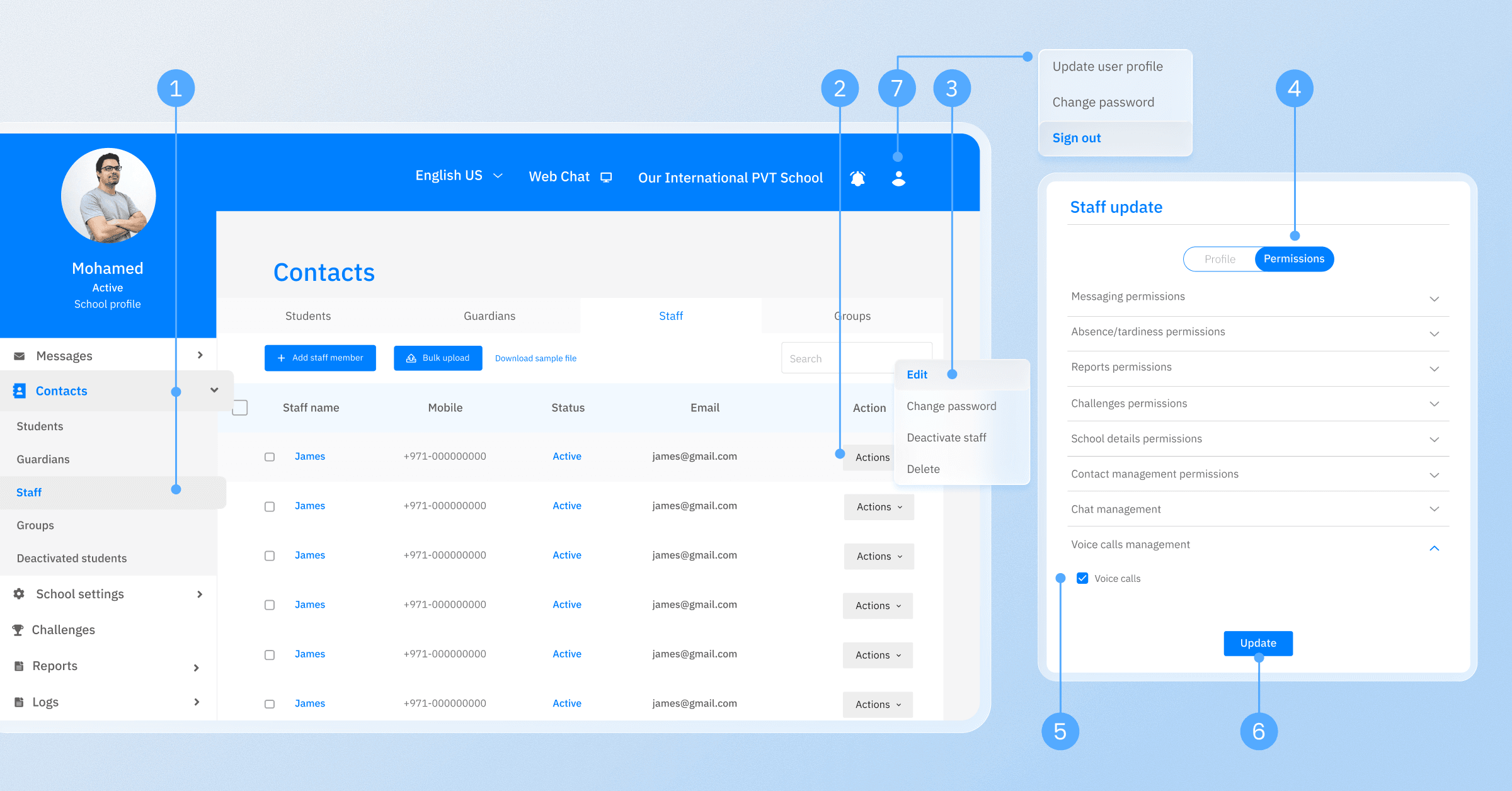
Important note: After permissions are granted, users must log out of the app and log back in for the new permissions to take effect.
How teachers and administrators can make voice calls
Once permissions have been assigned, teachers and administrators can place voice calls using the following steps:
1. Sign in
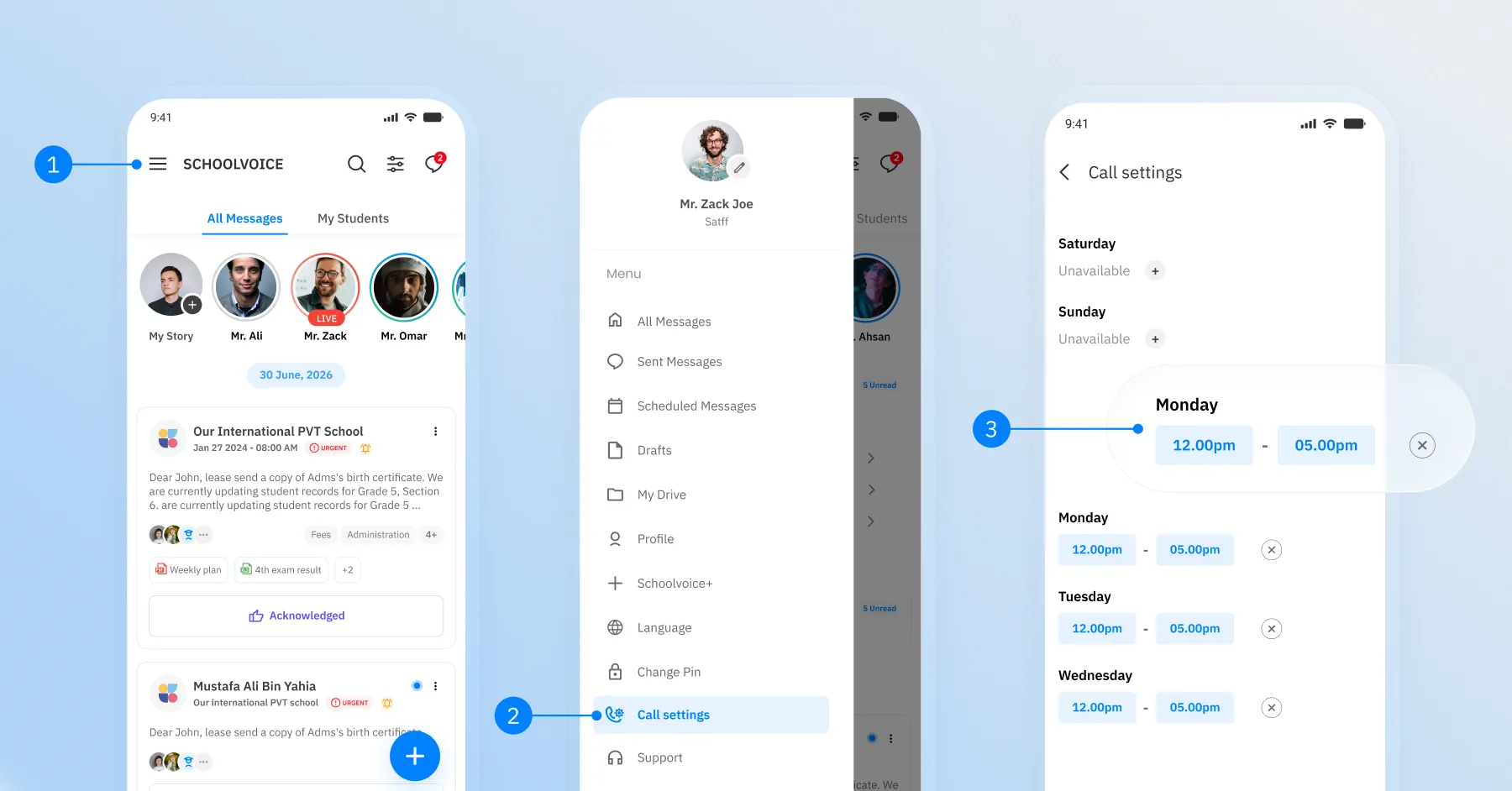
Log in to Schoolvoice, open the side menu, and select Call settings.
2. Set your availability
Define the hours during which parents are allowed to call you. These availability settings can be updated whenever needed.
3. Select a parent
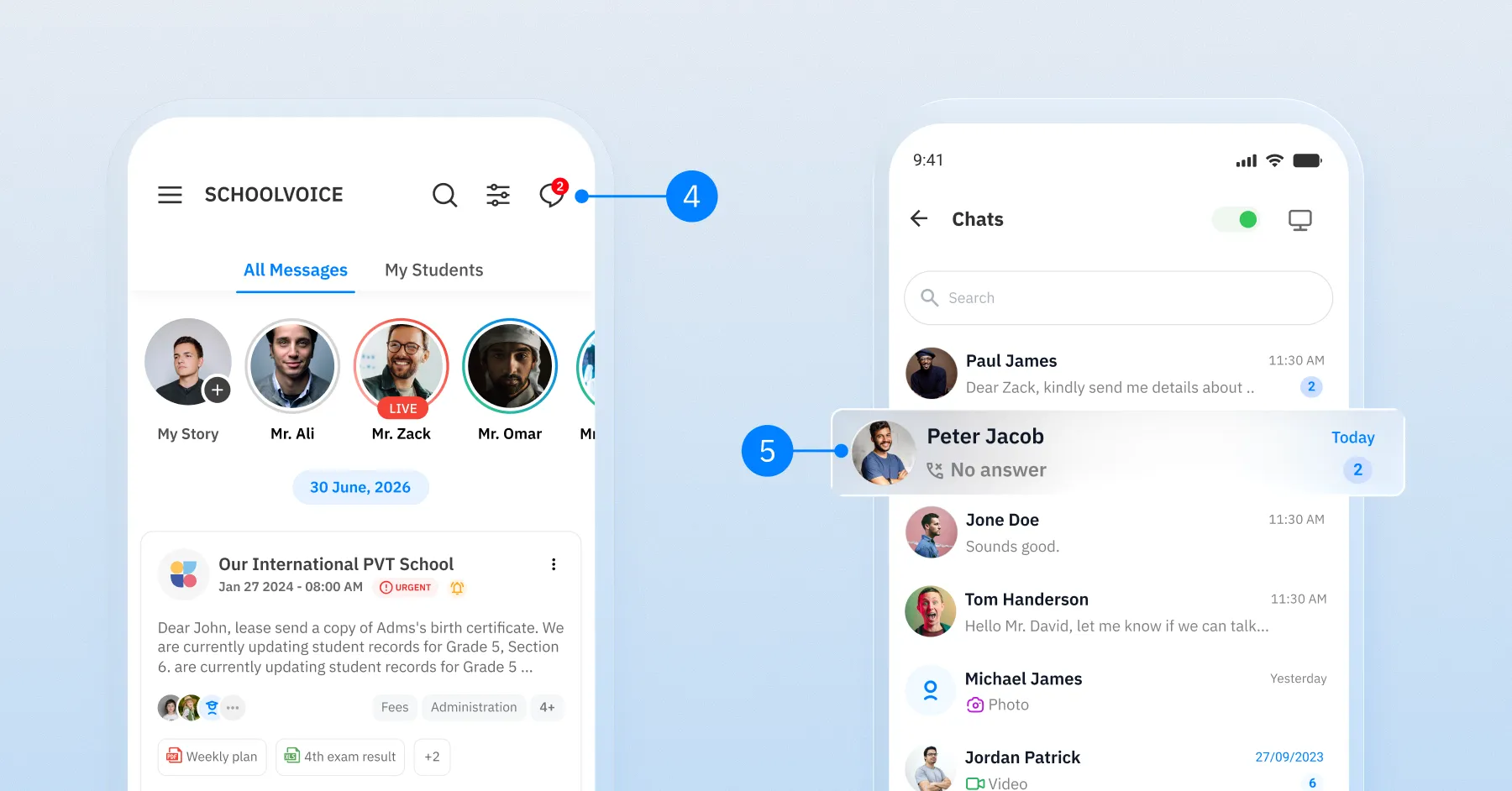
- Open the Chats section.
- Choose the parent you wish to contact.
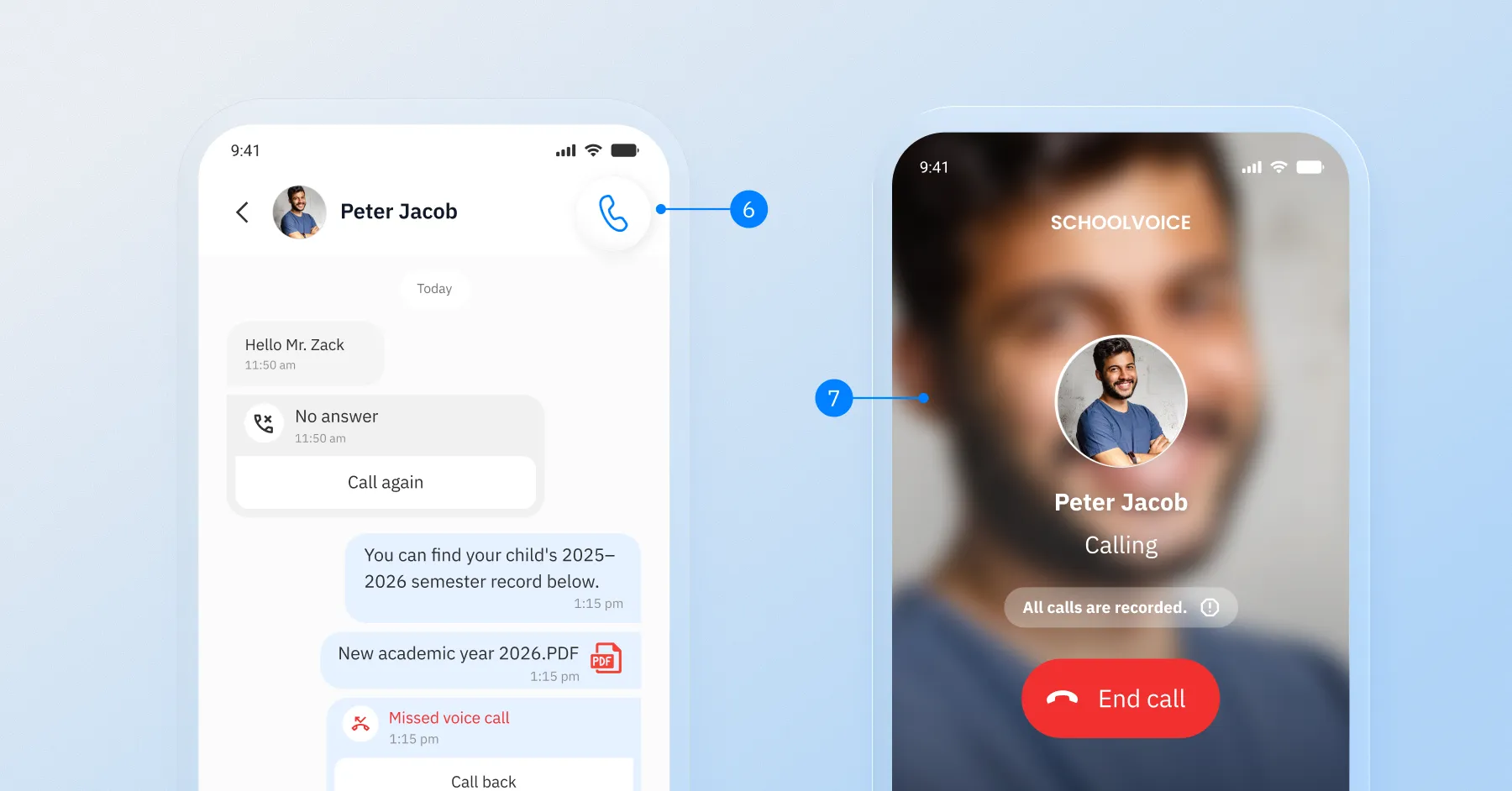
4. Start the call
Tap the Call icon next to the parent's name to begin the voice call.
Alternative method
You can also:
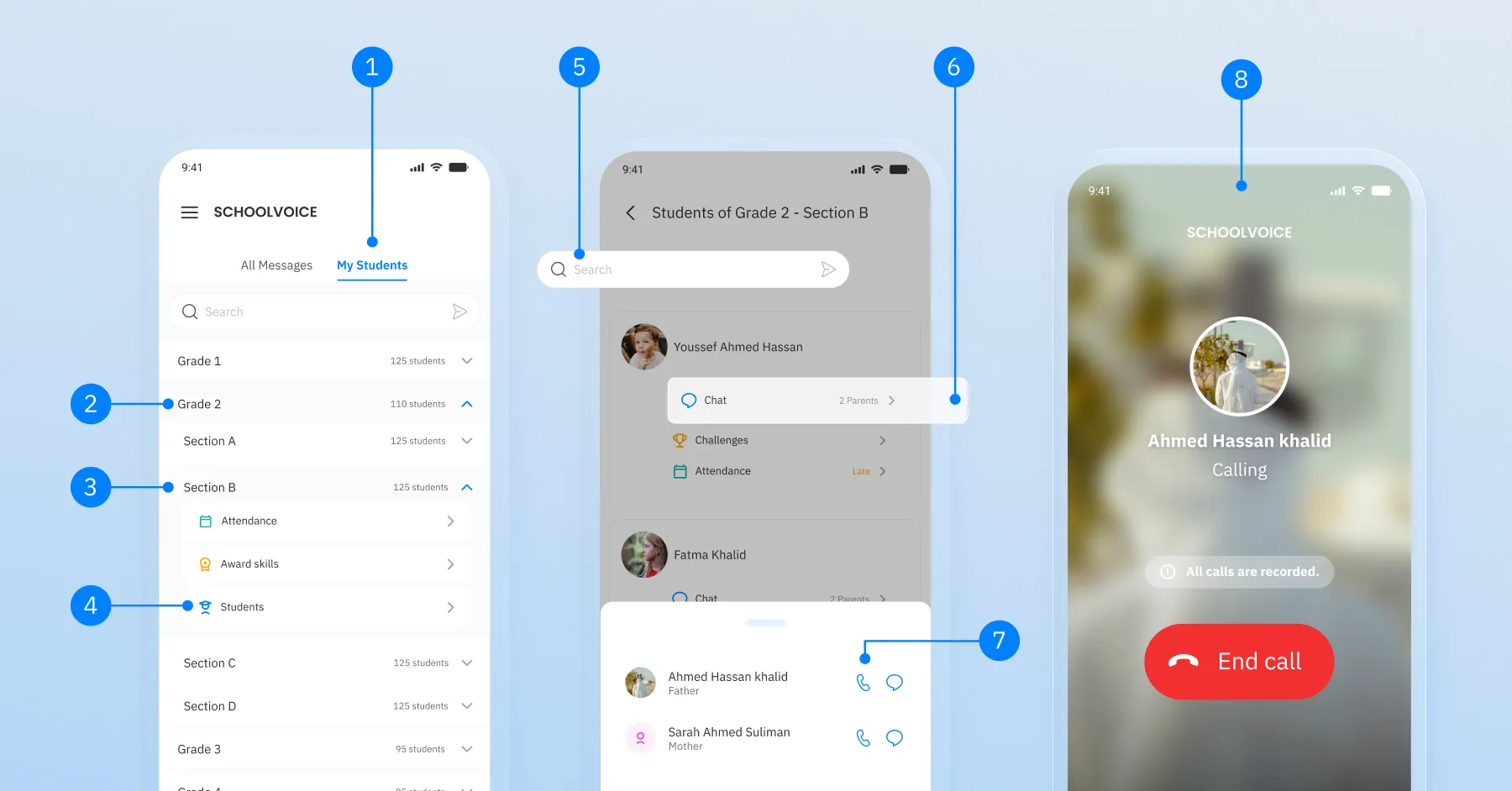
- Open My Students.
- Search directly for the parent.
- Or browse by Grade → Section → Student and select the parent.
How parents can make voice calls
Parents can contact teachers or administrators using the following steps:
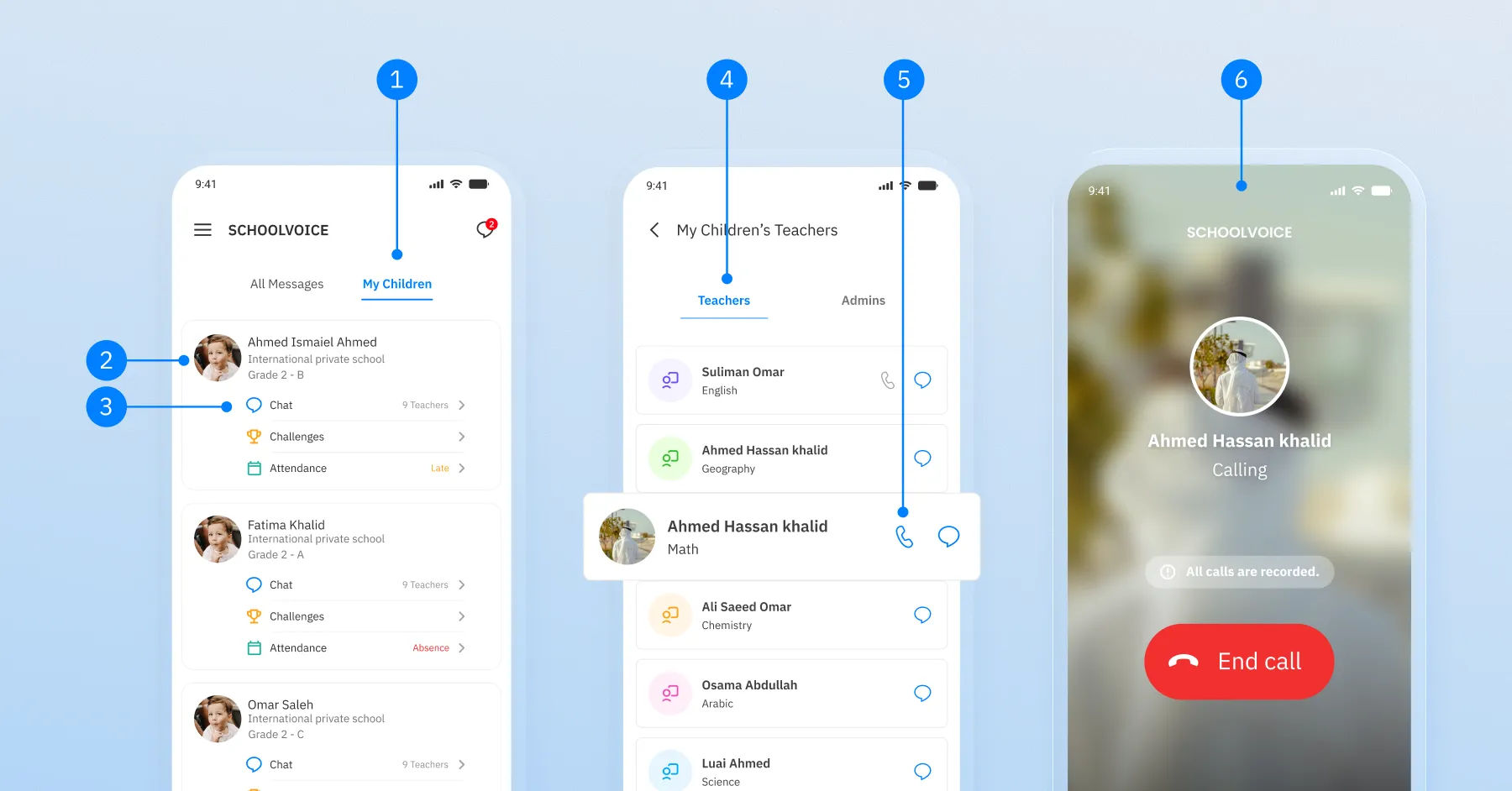
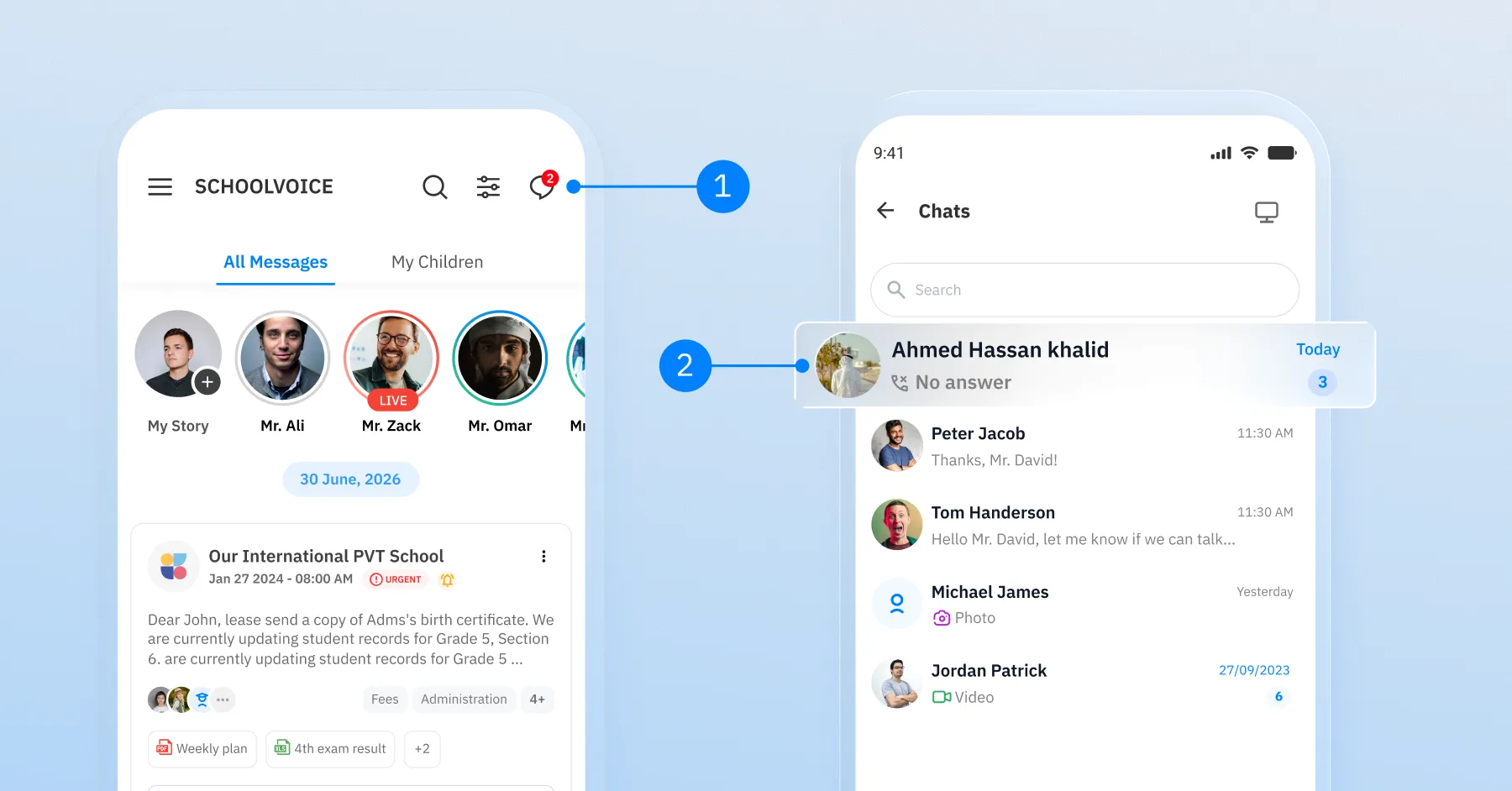
- Open the My Children tab.
- Select the child whose teacher you want to contact.
- Find the teacher's or administrator's name.
- Tap the Call icon next to their name to start the voice call.
Alternative method
Parents can also open an existing chat with the teacher or administrator and tap the Call icon beside the contact's name to call directly.
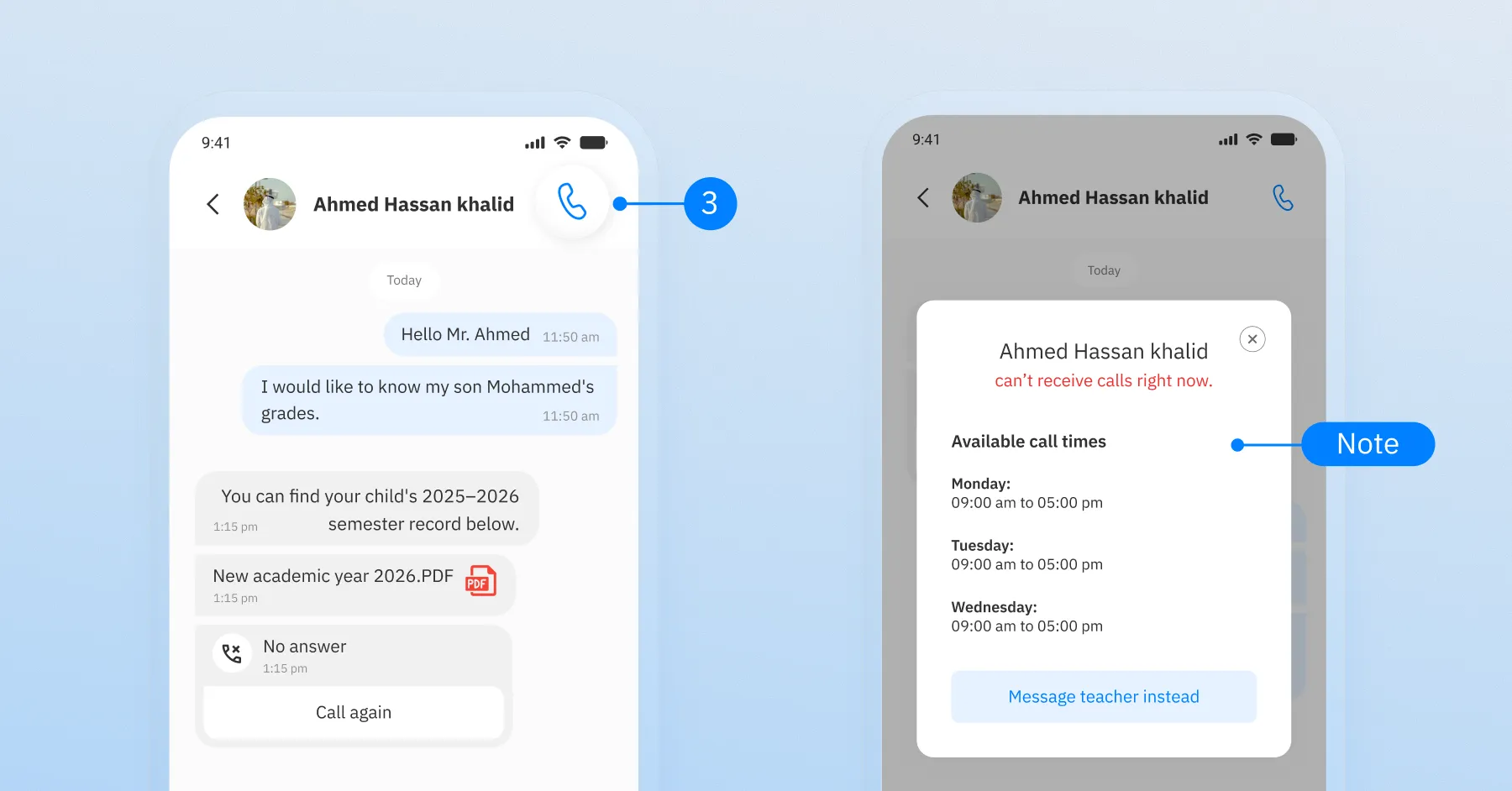
Note: If a parent attempts to call outside the staff member's available hours, a notification will appear explaining that the teacher or administrator is unavailable and displaying their available calling hours.
How school administrators can review voice calls
Schoolvoice provides administrators with advanced tools to monitor communication quality and review voice calls when necessary.
Enable call review permissions
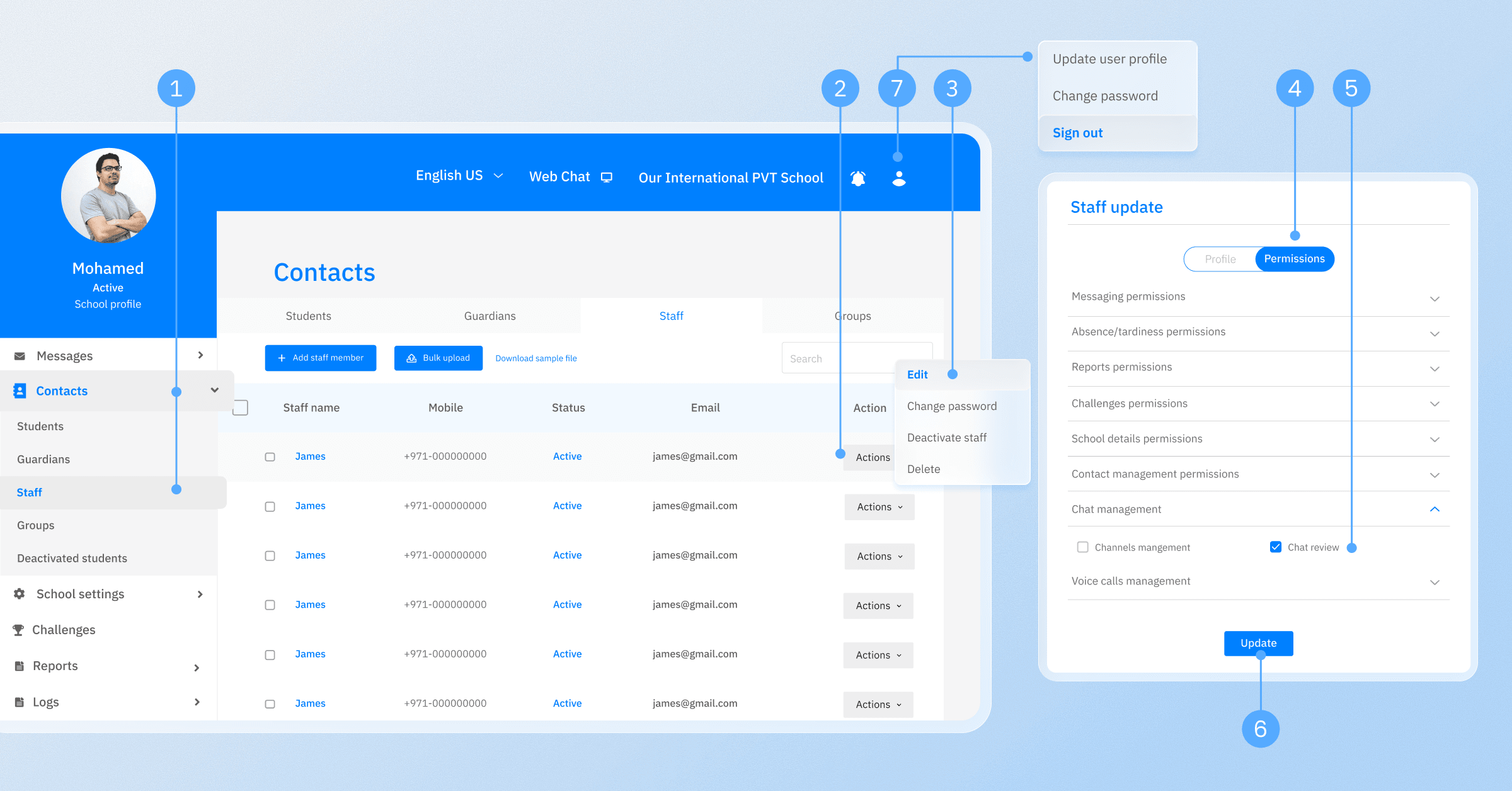
Administrators can grant this permission by:
- Opening Contact Settings.
- Choose Staff.
- Selecting the desired administrator.
- Opening Permissions.
- Enabling Manage Conversations and Review Conversations.
- Clicking Update to save changes.
The administrator must then log out and log back in for the new permissions to become active.
Reviewing voice calls
Once the permission has been enabled:
- Open Web Chat within the Schoolvoice platform.
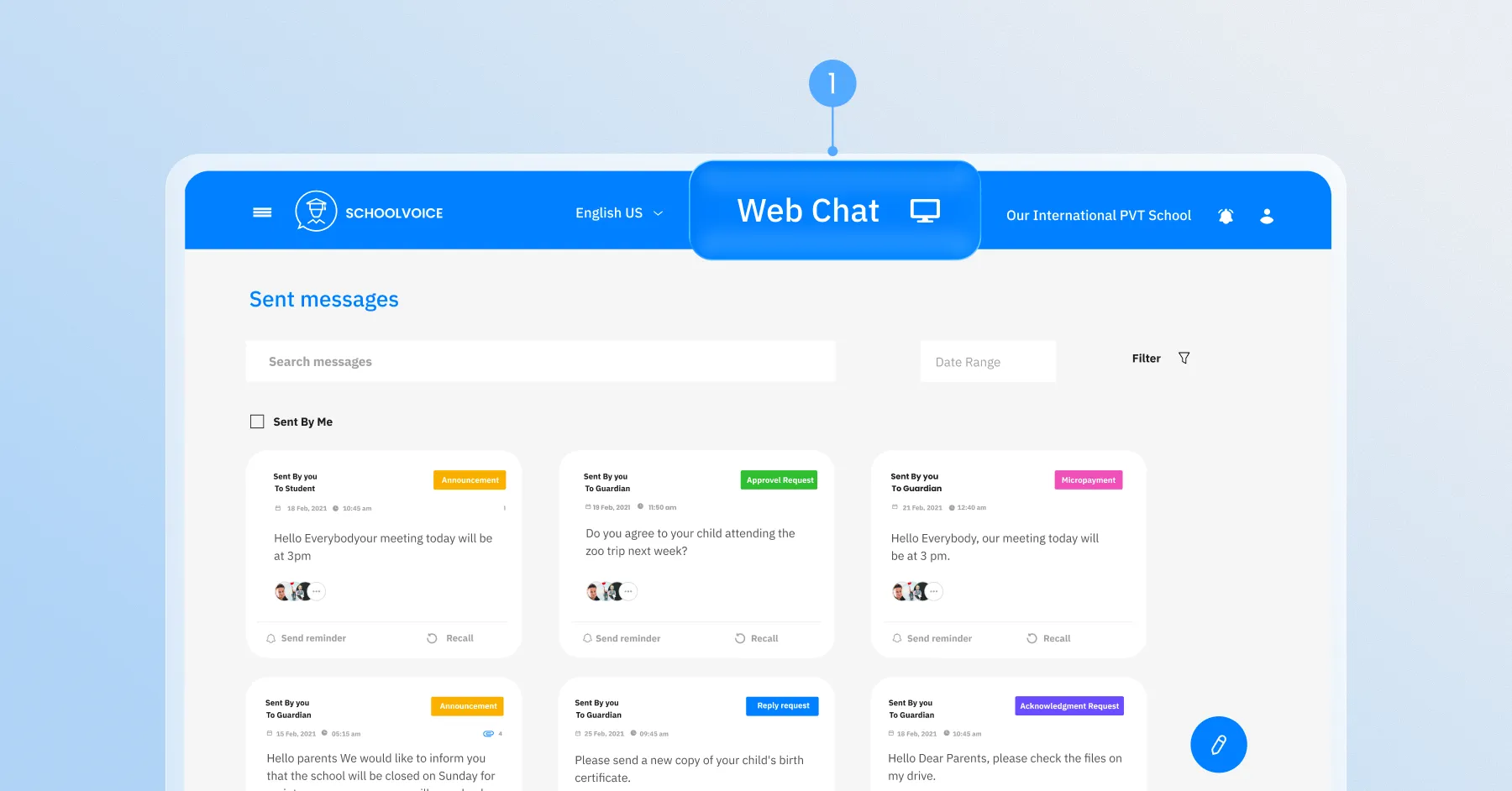
- Click the Review Calls icon.
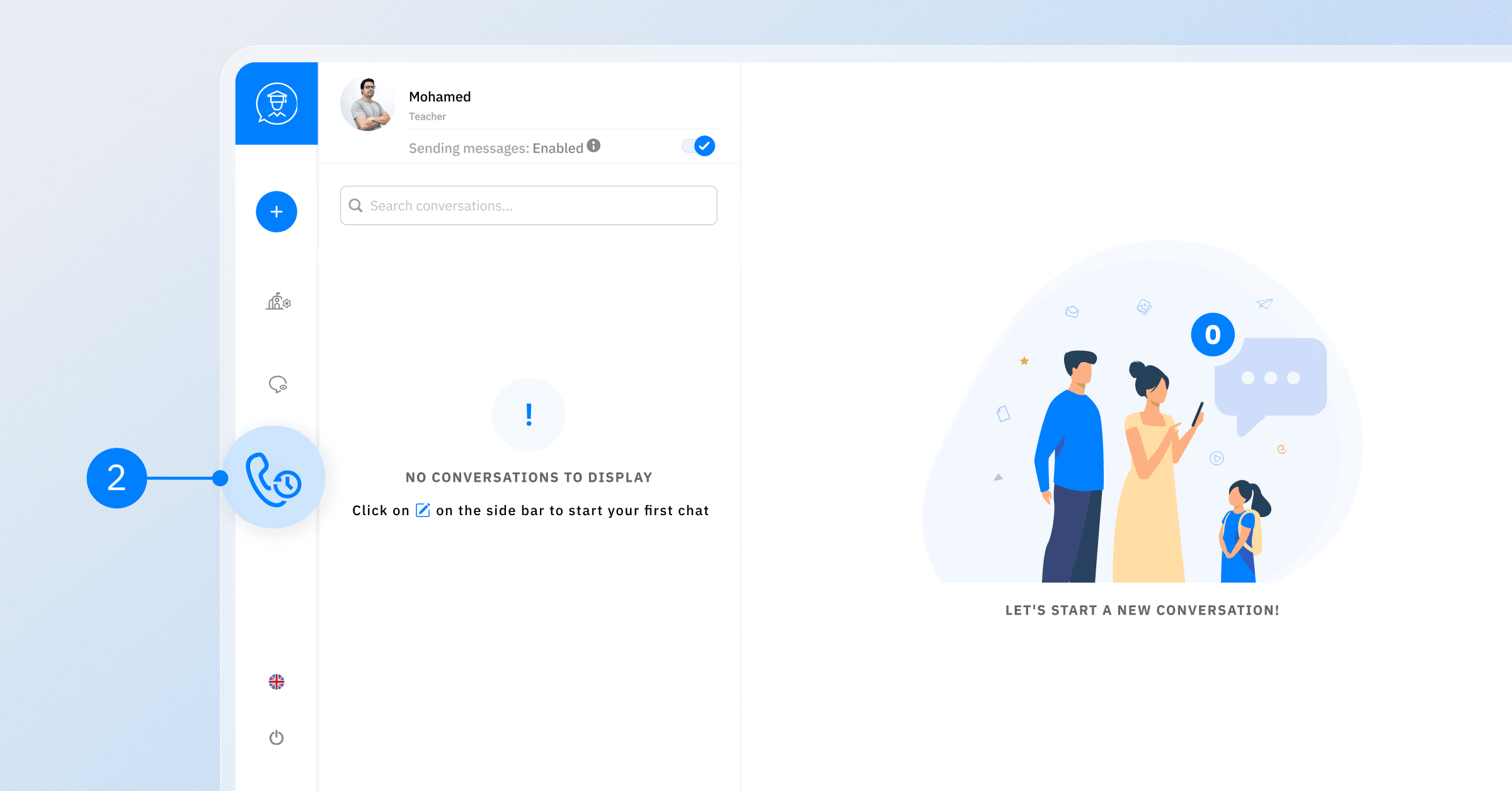
- The review page will open.
Administrators can filter calls by:
- School (if managing multiple schools)
- Teacher
- Parent
The system will then display all voice calls exchanged between the selected users.
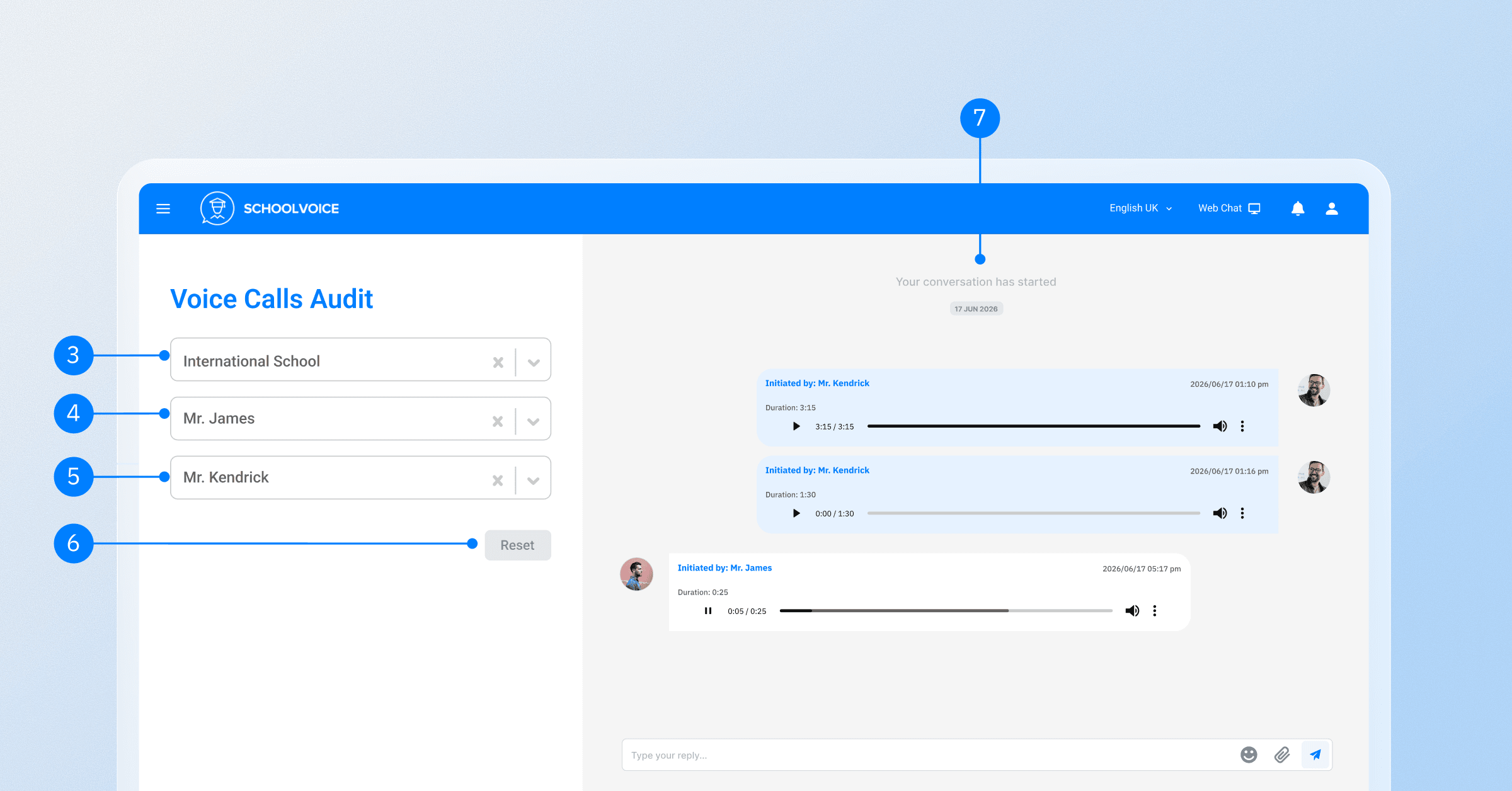
Information available during review
Administrators can access:
- Call duration
- Date and time
- Call status
- Call recording (when available)
These tools help schools maintain communication quality while improving transparency and accountability.
Voice call notifications
Voice Call Notifications provide clear, real-time updates about the status of every call. They appear automatically inside the chat conversation for both the caller and recipient, making it easy to track communication history.
Call status notifications include
- Call completed successfully.
- Missed call.
- Call rejected because the recipient was busy or unavailable.
Benefits of voice calls in Schoolvoice
For teachers
- Explain academic and behavioral observations more efficiently.
- Reduce time spent writing lengthy messages.
- Control when they are available to receive calls.
For parents
- Receive immediate answers.
- Better understand their child's academic progress and needs.
- Enjoy a more convenient and private communication experience.
For school administrators
- Monitor communication quality.
- Increase transparency and governance.
- Organize school communication more effectively.
- Reduce communication costs compared to traditional phone calls.
Conclusion
The Voice Calls feature makes school communication faster, clearer, and more effective while maintaining user privacy and giving school administrators greater oversight of communication activities.
By combining voice calls with Schoolvoice's existing communication tools, schools can create a complete communication experience that increases parent engagement and strengthens collaboration between teachers, administrators, and families.